
VinylStudio's Settings dialogSettings / Preferences window gives you a lot of control over where your split-up tracks are stored and how they are named, as well as one or two other things. You can access this dialog via the Options menu. You will also find additional, more specialised options under this menu.
Checking the Autosave box tells VinylStudio to save your work every few minutes automatically (recommended). When it does this, VinylStudio saves your album and track listings and suchlike in something called an MCF file. We refer to this as your collection file, although your collection also includes your recordings and album art.
Draw waveforms with thicker lines applies to the Cleanup Audio window and can make the waveform display easier to read on some monitors, especially in dark mode.
Animate windows performs a simple window animation when moving from one window to another, to help you keep your focus.
When playing track breaks, play each one for: applies to the Split Tracks window, and sets the amount of audio that VinylStudio plays either side of each track break when you click the 'Play Track Breaks' button in the toolbar beneath the waveform display.
The folder in which your split up tracks are stored defaults to your Music folder, but you can change this here if you wish. By default, VinylStudio creates a folder beneath here with the same name as your collection but you can override this if you wish by unchecking the box.
Show start and end times of tracks in track listing affects the list of track names in the Split Tracks window. It is usual to leave this box unchecked to cut down on visual noise.
Include grouping tag in saved tracks should be left unchecked in the circumstances shown. Bugs in iOS and Roon cause trouble if you check this box.
Prepend composer to track title can be useful for classical music, since some players do not display the composer tag that VinylStudio puts in your saved tracks. Prepend conductor to track title can be useful for the same reason.
Permit filenames longer than 260 characters is supported on Windows 10 and later, and can be useful if you have very long track titles or deeply nested folders. Please be aware though that not all programs can read these files.
The way in which your saved tracks are named can also be configured in a very flexible way. Choose an entry from the dropdown list (recommended) or if you want more control over where the files are stored you can type in a custom string. Please note that albums and singles each have their own separate setting; use the radio buttons to select the item of interest. Changing the setting for albums will make a corresponding change to the setting for singles, as that is generally what is wanted. If not, change the setting for singles subsequently.
File Options for the various file types that VinylStudio supports are listed below in alphabetical order. You can select the file type to configure from the dropdown list which is displayed when you click on the button.
Check Save album art in folder.jpg if you want VinylStudio to copy album art to file folder.jpg when saving tracks. Some media players recognise this file and will display it when the track is played and Explorer will show it as a folder icon. Note that this option only makes sense if each album is saved to a separate folder.
Add Silence: use these fields to add silence at the start and / or end of saved tracks. If you set these fields, you should eliminate the existing gaps between tracks in the Split Tracks window, possibly fading the tracks in and out if there is a lot of background noise.
Detect gapless tracks: if you check this box, VinylStudio will not insert silence across a trackbreak which has no gap between the tracks.

We impose this limitation because cannot handle 96 kHz files.
Bitrate: 128 kbps is generally regarded as 'perceptually transparent', and will usually suffice. Higher bitrates result in larger files.
Use Variable Bitrate Encoding (VBR): This generally results in smaller file sizes for the same sound quality. Recommended.
VBR Quality: move the slider to the right for better sound quality (and larger files) when using VBR encoding.


There are no configurable options when saving or burning in DFF format. You get what you get.


VBR Low is generally a reasonable compromise here, in terms of sound quality vs file size, although use a higher setting if you have space on your device.
Embed Album Art: If you have looked up or imported album art for the album you are working on, VinylStudio can embed this in the files it generates when saving tracks. Most players are fine with this but a few may object, so you can disable it by unchecking the box. VinylStudio can also resize the image it stores in the file and it is generally wise to tell VinylStudio to limit the resolution to around 400 x 400 pixels. This does not change the original artwork file in any way.
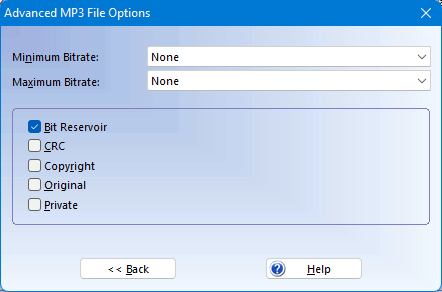

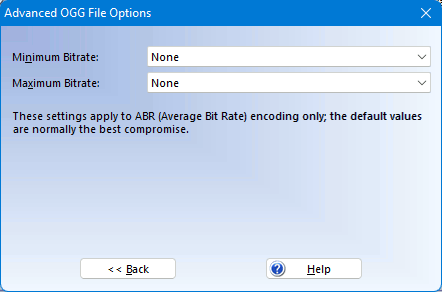
Quality: This allows you to trade off file size against sound quality. Variable Bit Rate (VBR) encoding offers better sound quality than Average Bit Rate (ABR) encoding for the same file size, and is recommended. VBR High is recommended when recording as you want, ideally, perfect fidelity and this setting comes close. VBR Low is generally a good compromise when saving tracks or burning CDs.
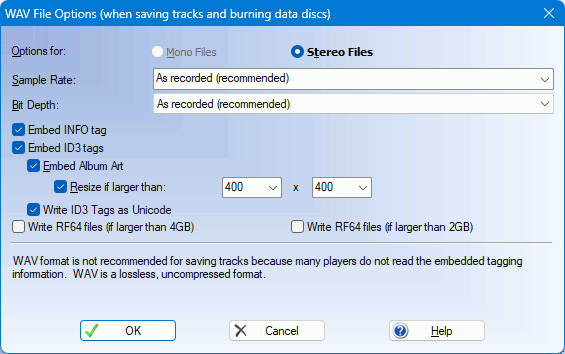
These are the options you can specify when recording to, converting to, or saving tracks in WAV format. When saving tracks you can specify a separate set of options for tracks saved in mono and stereo. Not all players can read the tagging information or album art that VinylStudio puts in WAV files, and not all players can play RF64 files.
Sample Rate: When recording, 44kHz is recommended as this provides the best results when burning CDs and is generally more than adequate for digitising records and tapes. When saving tracks, sample rate 'as recorded' is normally what you want but VinylStudio can convert your saved tracks to a different sample rate if desired. Lower sample rates give smaller file sizes but you will lose some treble. Converting to higher sample rates generally serves no useful purpose.
To record DSD, select DSD standard rate (strongly recommended) or DSD 2x double rate, although VinylStudio will normally set this automatically.
If you have an ADC capable of supporting DSD over PCM and you wish to record in DSD format, select DSD in this dropdown.
Bit Depth: The number of bits per sample in the output file. 16 bits per sample is normal. Higher bit depths generate larger files and take longer to process but give a wider dynamic range if you have a 20 or 24 bit sound card or other audio device.
Embed INFO tag: Embed tagging information as an INFO tag. Not many players read this tag and it cannot include album art.
Embed ID3 tags: Embed tagging information as ID3 tags. This can include album art.

Profile: A dropdown list of what the available codecs installed on your machine can do. Note that most budget hardware players do not support WMA Professional or WMA Lossless.
VBR Quality: Move the slider to the right for better sound quality (and larger files) when using VBR encoding.