 in the lower toolbar. This displays the following dialog:
VinylStudio is capable of finding and fixing most of the clicks and scratches in your recordings automatically. That said, click repair is not an exact science, and some form of manual intervention is sometimes needed to get the best results, especially if your recordings have a lot of heavy clicks or, in particular, scratches. It is important to listen to the results, and using headphones helps a lot.
To scan your recording, click on the Cleanup Audio tab if necessary and then click on the Scan for Clicks button in the lower toolbar. This displays the following dialog:
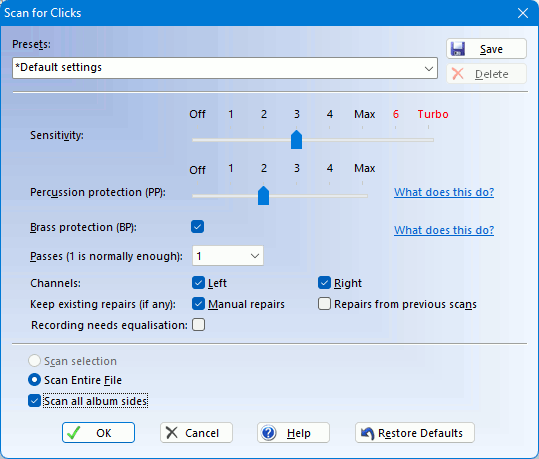
You can either scan the entire file, or make a selection first (by clicking and dragging in the waveform display) and then scan (or re-scan) just that.
There are four main settings which affect the operation of the click detector (you will be prompted for these each time you initiate a scan):
The "Default settings" preset is recommended for first-time users or for material which you have not scanned before, and represents a good compromise between finding as many clicks as possible and preserving the quality of the original audio. Use the 'turbo' settings (6 and 7) with care as these can cause distortion and take longer to complete the scan. They are intended for use on difficult material with a large high-frequency content, such as modern jazz.
For more information on how and when to adjust VinylStudio's click repair settings, refer to the Tips for Removing Clicks page.
Depending on its condition, scanning an LP side takes around 1 minute on a reasonably fast computer; less on modern hardware. Once the scan is complete, you can listen to the results and compare them with the original, uncorrected version by clicking on the  button in the toolbar. All changes are non-destructive - they are stored in a separate file and your original recording is not changed - and you can undo the scan () if you don't like the results.
When scanning fails to find a click or impairs the quality of the music, you can rescan the offending area with different settings, or, if necessary, repair the click manually. For more information on how to get the best out of your vinyl, refer to the Tips for Removing Clicks page.
Note: if (and only if) you recorded with a 'flat' phono preamp, or if you applied only inverse RIAA equalisation at record time, you should check the 'Recording needs equalisation' box. This will greatly improve the accuracy of VinylStudio's click scanner. Do not check this box if you are recording an old 'acoustic' disc (i.e. one which requires no equalisation in the first place). In that case, just apply inverse RIAA at record time if you cannot defeat the RIAA equalisation built into your phono preamp and scan for clicks using the default settings.